A FOIA redaction tool can help locate and remove selected content from a PDF. It cannot choose exemptions or determine what an agency must release. A controlled workflow keeps those legal decisions with authorized staff and gives the final PDF a separate verification step.
Key takeaways
- Tie every redaction to the applicable authority and agency instruction.
- Separate the exemption decision from the mechanical PDF edit.
- Review each page and each occurrence in context.
- Test the actual release copy before it leaves the agency.
- Review a public-record PDF only after the release scope is set.
What should be decided before document review?
Identify the request, responsive record set, recipient, governing statute, and agency procedure. Federal FOIA and state public-record laws are not interchangeable. Even within one agency, different record types may follow different review and approval paths.
Authorized staff or counsel should define the release scope and applicable exemptions. Give the reviewer written instructions that explain categories and escalation points. Avoid turning the instruction into a second copy of the sensitive material.
Decide how the response will identify withheld material. Some processes require exemption labels, an explanation, a redaction code, or a separate response letter. Redacting.ai does not choose or generate legal justifications. Add required markings through the agency's approved process and verify them in the release copy.
| Decision | Responsible owner | Tool's role |
|---|---|---|
| Responsive records | Agency records staff | None |
| Applicable exemption | Authorized reviewer or counsel | None |
| Location of likely identifiers | Assigned reviewer with detection aid | Propose candidates |
| Permanent PDF removal | Production reviewer | Apply selected redactions |
| Release approval | Agency process owner | None |
How should responsive PDFs be prepared?
Preserve source records in the agency system and work from release copies. Use filenames that do not reveal protected details. Keep a mapping to the official record in the approved case or request system instead of encoding personal data in the working filename.
Check whether the packet is fully image-only or mixes digital and scanned pages. Redacting.ai OCRs a fully image-only PDF automatically. A mixed packet may need to be split or prepared through the agency's approved process so every page gets the intended review. OCR can take longer, and an unclear scan can stop with a clear error.
Check pagination, attachments, exhibits, comments, and repeated headers before review. The step-by-step PDF checklist provides a preparation and export sequence.
How should proposed redactions be reviewed?
Read each proposed match in context. A name may identify an employee acting publicly, a private citizen, a witness, or the requester. A blanket rule based only on data type can over-redact public information or disclose protected information.
Inspect the text that detection did not flag. Narrative facts, small locations, dates, relationships, and job titles can identify a person when combined. Review tables, footnotes, handwritten material, signatures, page headers, and footers. On scanned records, compare the recognized text with the page image because OCR can miss or misread details.
Use the PII removal guide to structure direct and indirect identifier review. Financial attachments may need the bank statement checklist. Health-related records need the careful limits described in the PHI redaction guide.
How do you produce a safe release PDF?
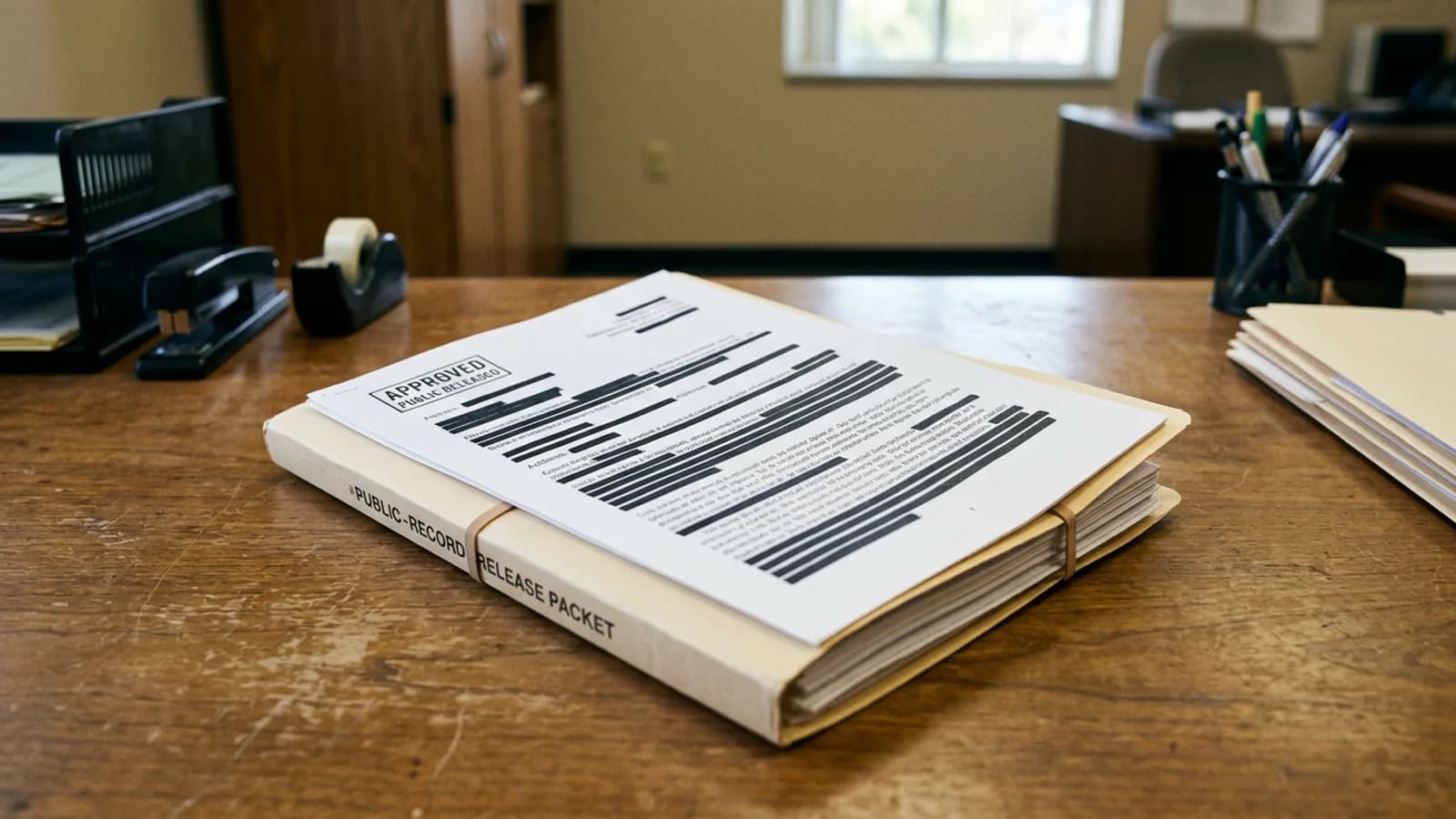
Apply approved redactions with a PDF operation that removes the selected content. A drawing, highlight, or annotation may leave underlying text available to copy or search. See the online PDF redaction guide for the difference.
Export a new file. Open that exact file in a separate viewer and search for removed values and distinctive fragments. Copy text across redacted areas into a plain-text editor. Read the remaining page to check whether nearby details reveal the withheld information.
Inspect filenames, document properties, bookmarks, links, attachments, and required exemption labels. Confirm page order and count against the intended release set. If the process uses a second reviewer, give them the final export and written instructions.
Do not send the file directly from a preview screen. The recipient will receive the export, so that is the artifact the approval process must test.
What should the response record preserve?
Keep the request reference, record-set reference, governing instruction, reviewer, approval, date, and final release filename. Record categories or exemption references according to agency procedure without pasting the removed personal data into ordinary logs.
Follow the agency's retention policy for source records, working copies, review notes, and release files. Redacting.ai does not replace the request-tracking system, legal review, records schedule, or public-release process.
For records tied to litigation, read the legal document redaction guide. It uses the same separation of legal decision, mechanical edit, and final-file verification.
Frequently asked questions
Does Redacting.ai determine FOIA exemptions?
No. The agency or its counsel determines the applicable law and what may be withheld.
Should the release explain each redaction?
Follow the applicable law and agency procedure for exemption markings and response explanations.
Can a reviewer accept all detected names at once?
That can miss context. Review each occurrence against the authorized release rule.
Can Redacting.ai review scanned public records?
Yes, when the entire PDF is image-only. OCR runs automatically before detection. The reviewer must check the recognized text and final release copy.