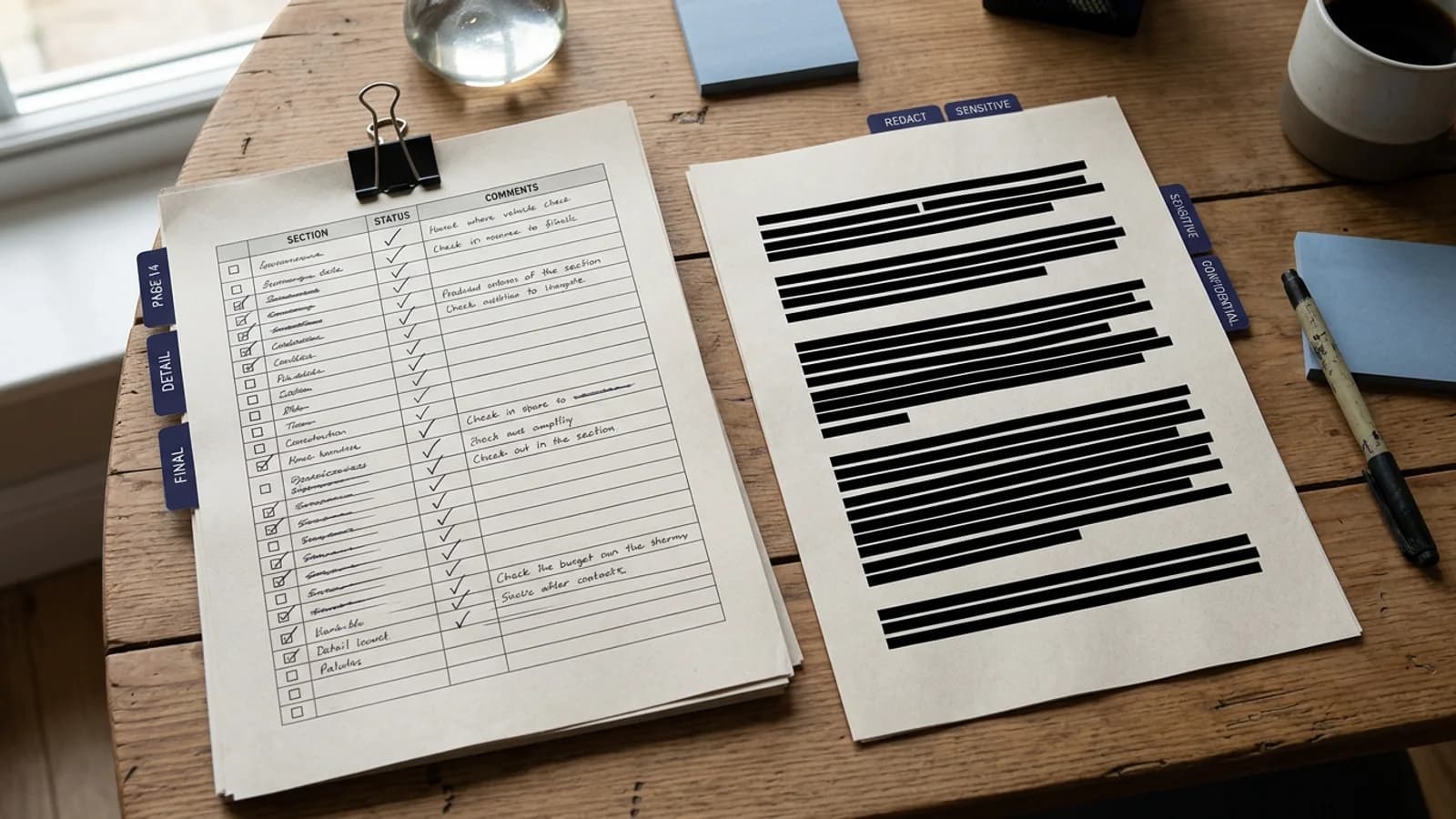
To redact a PDF safely, define the release rule, review each page, apply permanent redactions, and test the exported copy. This checklist turns those steps into a process another reviewer can repeat.
Key takeaways
- Never edit the only copy of an original record.
- Decide what may be disclosed before selecting text to remove.
- Review detections in context and inspect areas the software did not flag.
- Verify the downloaded PDF with search, selection, and visual checks.
- Start a PDF review when the source file is ready.
What should you do before redacting a PDF?
Create a working copy and give it a neutral filename. Do not put a client name, patient identifier, account number, or other personal data in the filename. Keep the authoritative original in the system where it belongs, with access limited by your normal records policy.
Next, write a short release rule. For example: release the agreement but remove personal contact details and bank information. A clear rule keeps the reviewer from making a new decision for every highlighted item. It also helps a second reviewer understand why one name stayed visible while another was removed.
Check whether the whole PDF is image-only. Redacting.ai sends a fully image-only PDF through OCR automatically before detection. OCR may take longer than processing a PDF that already has text. If the scan yields no usable text, processing stops with a clear error. Even when OCR succeeds, inspect the page because unclear characters and layouts can be misread.
| Preparation check | Why it matters | Evidence to keep |
|---|---|---|
| Work from a copy | Protects the original record | Source location or record ID |
| Define the release rule | Makes decisions consistent | Review note or request scope |
| Note whether the file is image-only | Sets expectations for OCR and closer review | Scan-quality note or processing result |
| Identify final approver | Prevents an unreviewed release | Named owner or team |
How do you find information that needs redaction?
Read for meaning first. A list of pattern matches cannot tell you why a value appears. A phone number may belong to a private witness or a public office. A date may be a birth date or the date a contract was signed. The release rule, not the data type alone, determines the decision.
Use automatic detection to create a review queue. Work through direct identifiers such as names, addresses, email addresses, phone numbers, government identifiers, and account details. Then look for combinations that can identify a person indirectly. The PII removal guide covers this in more detail.
Review every page, even if a page has no proposed detections. Inspect tables cell by cell. Check headers, footers, signature blocks, footnotes, appendices, and repeated account information. Legal files benefit from the legal redaction checklist. Financial files need the separate bank statement checklist.
How do you apply a permanent redaction?
Select only the content covered by the release rule. Keep enough surrounding text to preserve meaning when that is allowed. Over-redaction can make a document unusable, while under-redaction can expose information the recipient should not receive.
Apply the selected redactions through a PDF redaction operation. Do not substitute a highlight, drawing, or annotation. Those tools change the appearance of the page and may leave text behind. The online PDF redaction guide explains the hidden-text problem.
Export the result as a new file. Keep the working copy until verification is complete. If the tool reports an error, do not treat the preview as a finished document. Restart from the working copy and confirm that the final export completed.
How do you check the redacted result?
Open the downloaded file in a separate PDF reader. Search for each sensitive value and for distinctive fragments. If you removed an account number ending in 4321, search for both the full value and 4321. Copy text across the redacted area into a plain-text editor. The removed content should not appear.
Read the file from the recipient's point of view. Check that the remaining language makes sense and that nearby details do not reveal what was removed. Inspect document properties and the filename. If your process allows it, print to a test device or render the pages to confirm that the release copy still displays correctly.
For consequential disclosures, a second-person check is worth the time. Give the reviewer the release rule and the exported PDF, not only a list of what the first reviewer selected. Public-record reviewers can adapt the FOIA redaction guide. Teams handling health records should read the PHI redaction guide before deciding on a workflow.
What should your audit note contain?
Record the source, the release rule, the reviewer, the date, and the final filename. Do not paste removed personal information into the note. A useful note proves that a review happened without creating a second store of sensitive content.
Keep the note according to your organization's policy. Redacting.ai is a document tool, not a records-management or legal-approval system. Your team remains responsible for retention, disclosure authority, and the final decision to send the file.
Frequently asked questions
What is the first step in PDF redaction?
Define what the recipient may see, then work from a copy. That scope governs the rest of the review.
What happens if a PDF is a scan?
Redacting.ai OCRs a fully image-only PDF automatically. Review the detected text carefully, and do not continue if processing reports that the scan could not be read.
How do I know a redaction is permanent?
Test the new export. Search for removed values and copy text across every redacted area.
Who should approve the final document?
The person or team responsible for the disclosure. Software can find likely sensitive details, but it cannot decide every legal, contractual, or policy question.