Online PDF redaction should remove sensitive content, not merely hide it. The safe workflow is simple: work from a copy, inspect every page, apply redactions that remove the underlying text, and test the exported file before sharing it.
Key takeaways
- A black rectangle is not proof that the text beneath it is gone.
- Review the whole document, including headers, footers, tables, and attachments.
- Treat automatic detection as a starting point, not a final disclosure decision.
- Open the exported PDF in a separate viewer and try search and copy tests.
- Try Redacting.ai with one PDF when you are ready to review a file.
What does safe online PDF redaction require?
A useful redaction workflow has three separate jobs. It finds likely sensitive details, lets a person decide what should be removed, and writes a new PDF without the selected content. Skipping the review step creates a different risk: software may flag harmless text or miss context that only the document owner understands.
Start by deciding what the recipient is allowed to see. A public-record response, a client disclosure, and an internal handoff may require different redactions even when they begin with the same file. Write down the rule for the disclosure before you upload anything. That makes review more consistent and gives another reviewer something concrete to check.
Redacting.ai accepts digital PDFs and fully image-only scanned PDFs. Image-only files go through OCR automatically before text detection. This can take longer, and OCR can misread an unclear page. If it cannot recover usable text, processing stops with a clear error. Office files and standalone images are not accepted. See the PDF redaction workflow for a longer walkthrough.
Why is drawing a black box unsafe?
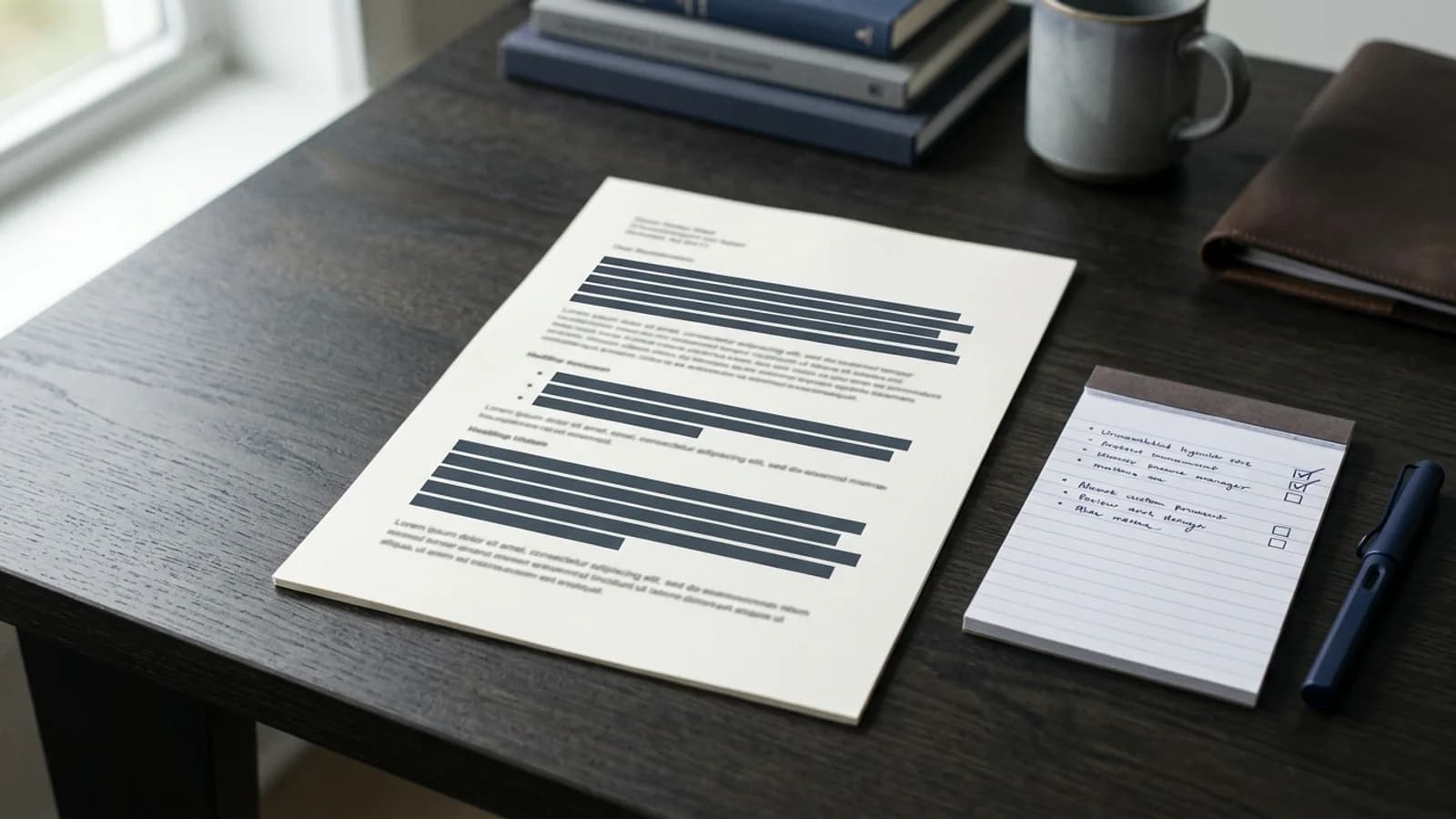
Presentation and content are different layers in many PDF files. Drawing a shape over a name changes what the page looks like. It may not change the text object below the shape. A recipient might select the area, copy the hidden line, search for a known name, remove the annotation, or extract the text with another tool.
The same problem appears when someone changes text color to black, crops a screenshot, or places an opaque image over a paragraph. Those methods can produce a convincing preview while leaving recoverable data in the file. Permanent redaction should remove the selected material in the exported document.
| Method | What it changes | Safe basis for release? |
|---|---|---|
| Black highlight or rectangle | Appearance only | No |
| Crop or screenshot overlay | Visible page area | No, not without a full file check |
| Delete text in an editor | Document content, sometimes layout | Needs careful export testing |
| Apply a PDF redaction operation | Selected content in a new export | Yes, after verification |
How should you review detected details?
Read the document once for meaning before accepting any proposed redaction. Names can refer to a protected person, a public official, an author, or a company. A date can be a birth date, a filing date, or a deadline. Context decides whether it belongs in the released copy.
Then review by category. Check direct identifiers such as names, email addresses, phone numbers, account numbers, and government identifiers. Check indirect identifiers too. A rare job title, a small location, or a combination of dates may identify someone even after their name is gone. The guide to removing PII explains this distinction.
Finally, inspect places that automated tools and hurried reviewers often overlook: repeating headers, footnotes, table cells, form fields, comments, bookmarks, filenames, and pages with unusual layouts. Pay extra attention to OCR text on scans. A successful OCR step does not prove that every character was read correctly.
How do you verify the exported PDF?
Download the redacted result and open it as a new file. Do not rely only on the review preview. Search for each value you intended to remove, including distinctive fragments. Drag across the redacted area and copy it into a plain-text editor. Confirm that the copied text does not contain the removed value.
Review every page visually. Redaction can change line wrapping or leave surrounding words that reveal the missing detail. Check the filename and document properties for information you did not intend to disclose. When the stakes are high, ask a second person to compare the release copy against the written disclosure rule.
The last check belongs to the sender. Redacting.ai helps identify and remove selected text, but it cannot decide what a law, contract, court order, or internal policy requires. Legal teams can use the legal document redaction guide, while public-record teams can start with the FOIA redaction checklist.
What should happen after download?
Store the redacted copy separately from the original. Use a filename that makes the intended recipient and review state clear without putting personal data in the filename. Send the release copy through an approved channel, then follow your retention policy for both files.
If the document includes financial records, use the bank statement checklist before release. For health records, the PHI redaction guide explains why software alone cannot establish HIPAA compliance.
Frequently asked questions
Can black highlighting permanently redact a PDF?
No. A black shape may leave the original text in the file. Use a redaction operation that removes the selected content, then test the export.
Should I keep the original PDF?
Keep it only when your records policy requires it, and restrict access. Never overwrite your only authoritative copy during redaction.
Does Redacting.ai support scanned PDFs?
Yes. A fully image-only PDF goes through OCR automatically before detection. Check the OCR result and every proposed redaction before applying changes.
Is automatic detection enough on its own?
No. Detection helps focus review. The person responsible for disclosure must decide what to remove and verify the final file.